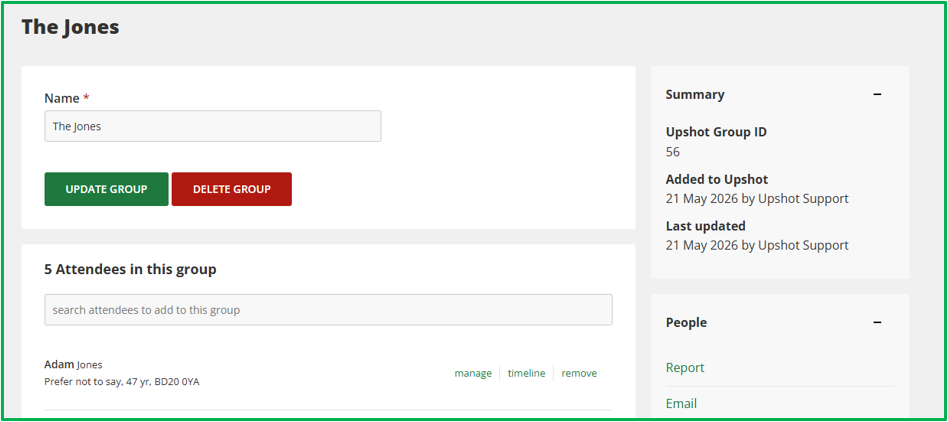
Attendee Groups
Organisations can create Attendee groups.
These groups can be a way of managing and combining attendees that have a distinctive shared characteristic. Examples of the types of Attendee groups might include, but are not limited to:
- Families
- Types of Profiles - i.e. Staff Members or Volunteers
- School classes
- Cohorts
- Membership groups
- Sports teams
- Individuals associated to a mentor/therapist/case worker/staff member
- Individuals associated to a particular external organisation (i.e. all work for the same employer)
Note: Attendees can belong to more than one Attendee group.
- Actions that can be completed with an Attendee group
- Creating an Attendee group
- Adding, or Removing, Attendees from an Attendee group
- Managing an existing Attendee group
Actions that can be completed with an Attendee group
Once added to a particular attendee group, users can then:
- Add an Attendee group to a register, thus adding all attendees from the group at once. This can also be completed on the Sessions Grid.
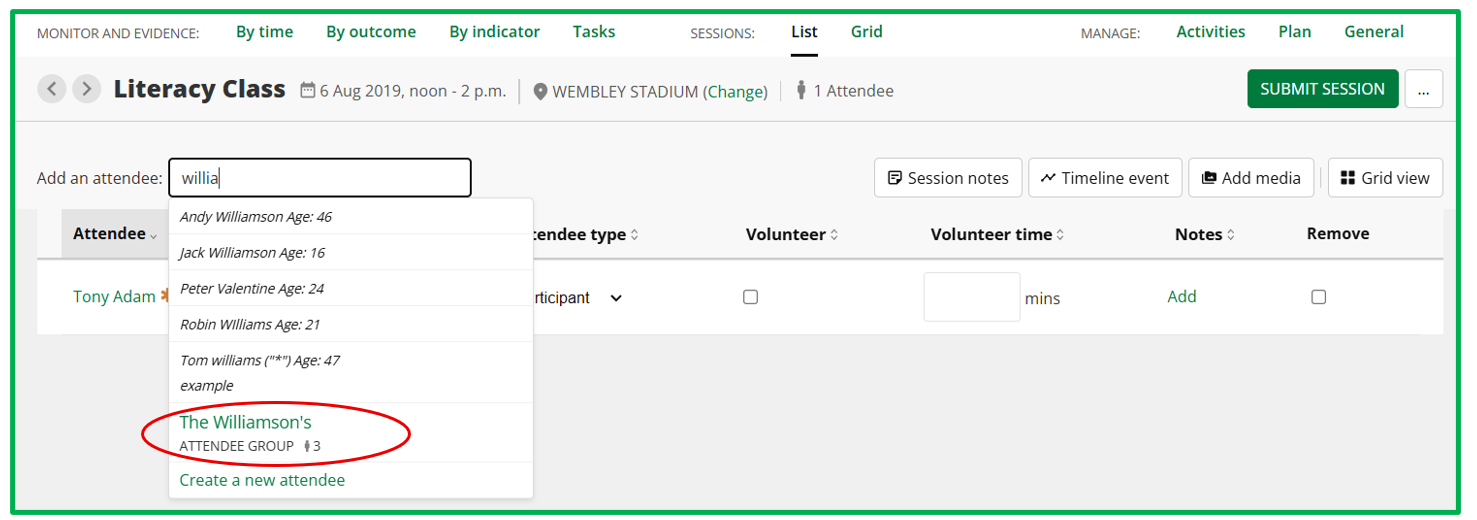
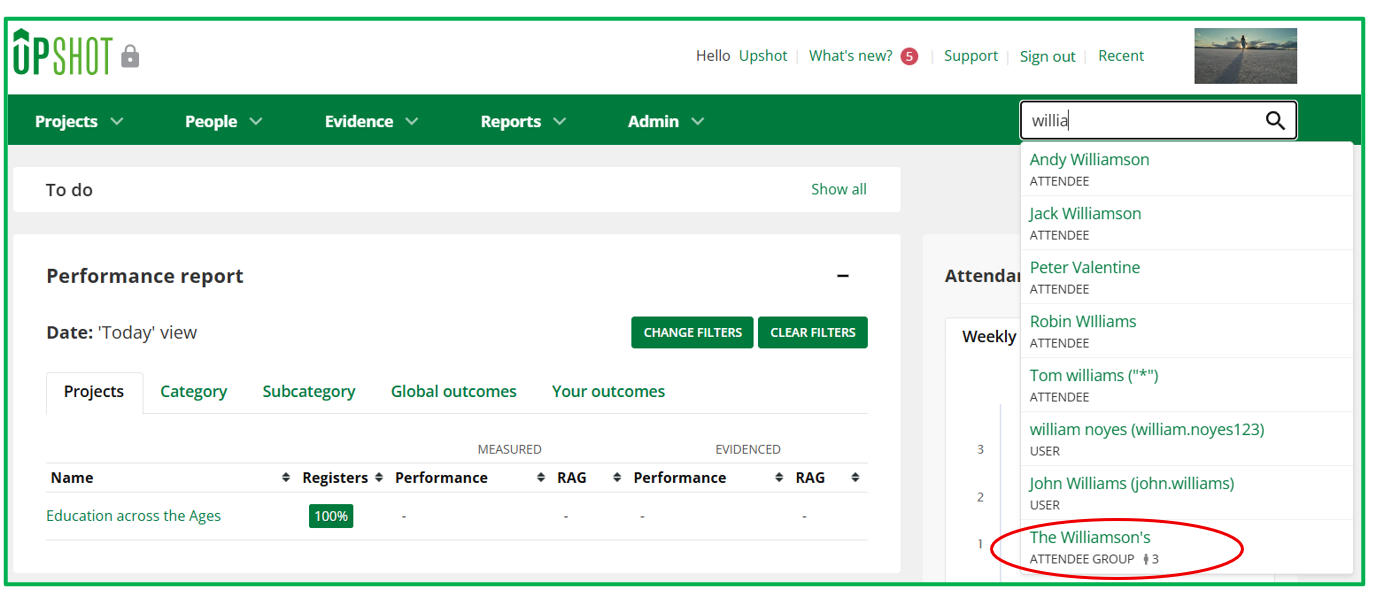
- Search for an Attendee group using the search bar.
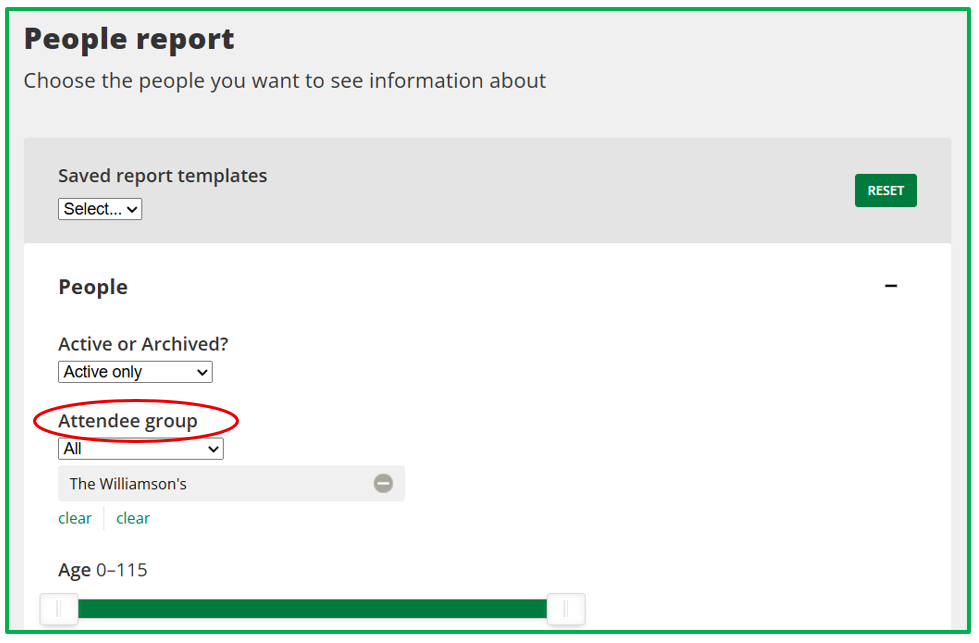
- Filter by Attendee group on the People Report to report, download, email or survey just the attendees from a particular group.
- View the Attendee group name on a People Report export for further analysis.
Creating an Attendee group
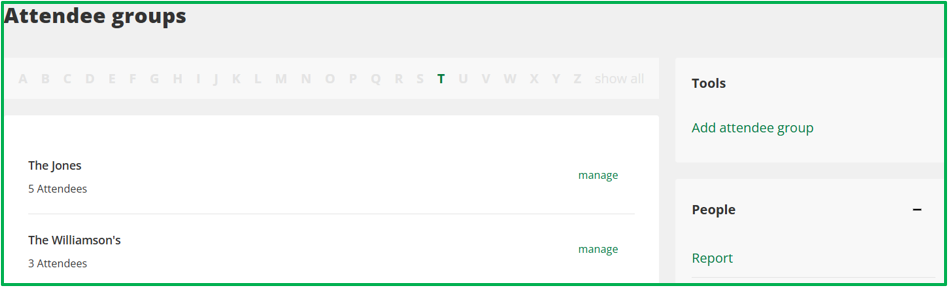
To create an Attendee group, users can go to People > Attendee groups.
This page will display any existing groups as well as on the right-hand side providing the opportunity to Add attendee group.
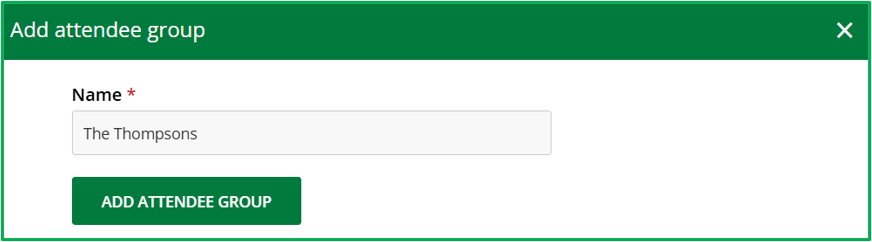
After clicking, users can Name the group.
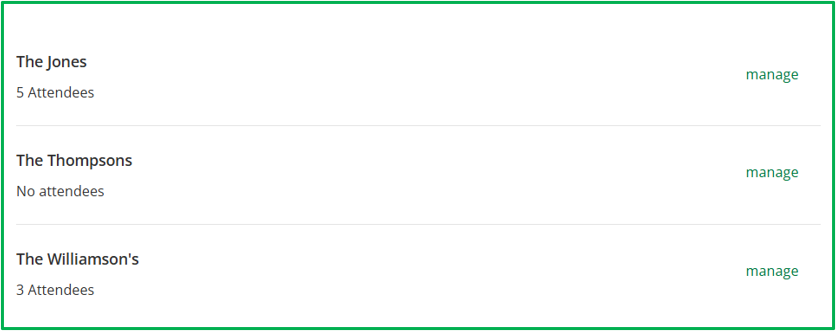
After clicking Add Attendee Group the new group will show in the list of existing Attendee groups. This also highlights the number of attendees within each group.
Adding, or Removing Attendees, from an Attendee group
Once a group has been created attendees can be added to the group in a number of ways:
- From the Attendee groups page - users can click People > Attendee groups, they can click manage on the relevant group and then add or remove the relevant attendees.
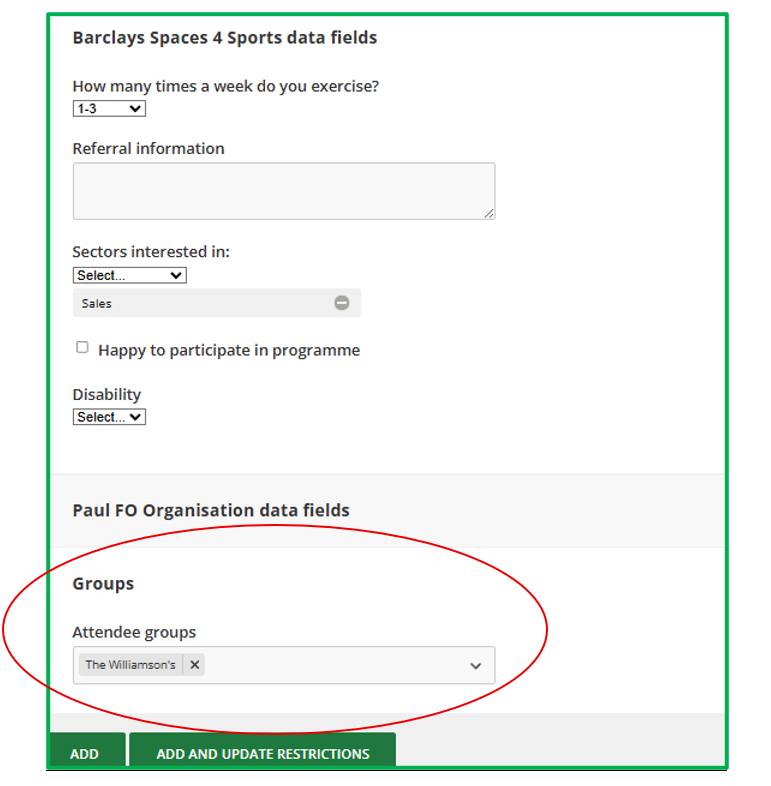
- For an existing attendee - the Attendee groups drop down will be displayed on the Personal details tab.
- When adding a new attendee, either via the internal registration form (People > Add new) or when accepting them from the Attendee sign-up waiting list.
- It is also possible for the Attendee groups field to be added to the organisation's external facing Attendee sign-up form, allowing new attendees to select this upon signing up. System Admins can add this field to their existing form in the first instance by going to Admin > Attendee sign-up form. Including the Attendee groups on the external form should be treated with caution as this would display a list of all existing Attendee groups to prospective attendees.
Note: It is not possible to add Attendees to an Attendee group when completing the Bulk Import process.
Managing an existing Attendee group
By going to People > Attendee groups users will be presented with a list of their existing groups. From here they can click manage on an existing group.
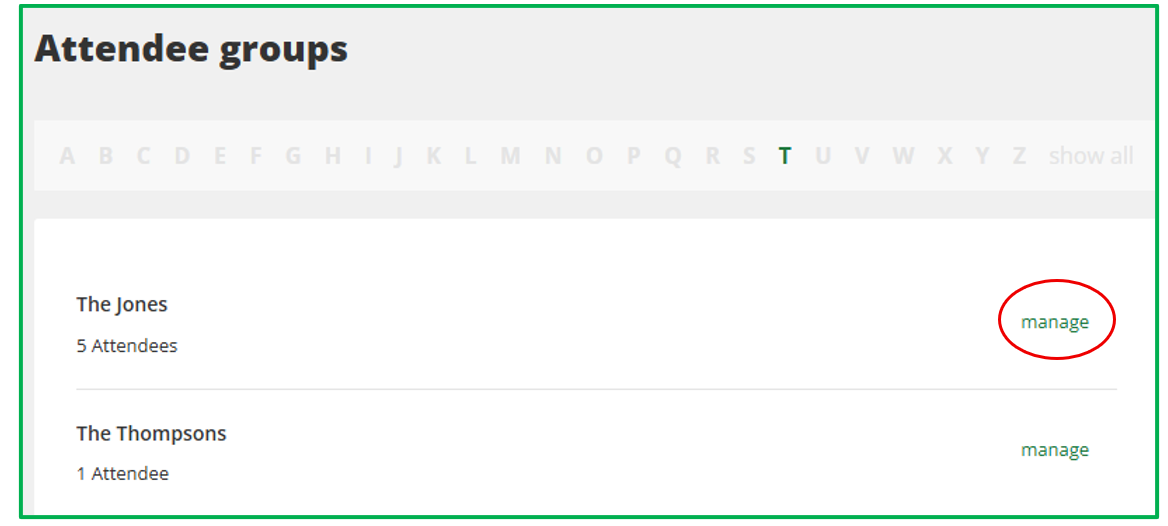
From the following page users can choose to:
- Update the group name.
- Add more attendees to the group.
- Remove attendees from the group.
- Delete the group - note this action will not delete the attendees themselves.
- See which user added the group and which user last updated it.