
Compare Attendees and Merging Duplicates
The compare attendee page allows users to compare two attendee profiles side by side. This page also provides the opportunity to merge duplicate attendee profiles.
Compare Attendees
This page can be accessed from People > Compare attendees or within the Tools section available on an existing attendee profile. The page is also accessible when the duplicate warning is presented on either the Attendee sign-up waiting list or when an existing potential duplicate profile has been updated within the system.
Once two attendees have been selected, and the user has clicked Compare, the information presented will include:
- A summary of the data associated with the attendee including:
- Sessions attended
- Timeline Events
- Completed surveys
- Media items
- Key fields used in the system's duplication check
- Any information against default and custom data fields
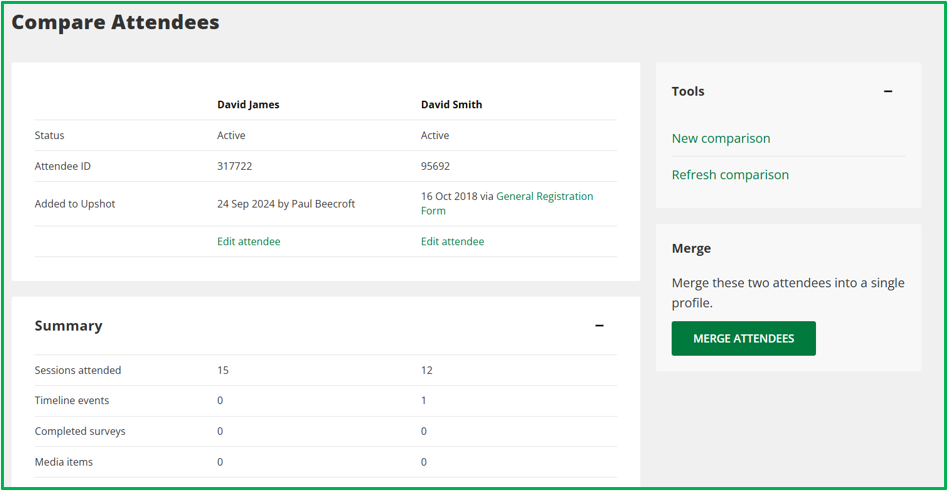
It may prove helpful to compare two attendees for several reasons, such as to check whether siblings have the same contact details, or attendees on the same programme have had similar levels of interactions.
Another common reason may be to check whether profiles are potential duplicates; i.e. two versions of Joe Bloggs. This page also provides the opportunity to merge these two attendees into one single profile.
Merging Attendees
If users identify two attendee profiles who are the same person, they may wish to merge these profiles into one. Merging into one record will help ensure data consistency for reporting purposes moving forward, with a true record of all information recorded against the single profile.
This can all be completed from the Compare Attendees page, accessible via People > Compare Attendees.
Merging will combine information from the Summary, so all Session data (where the attendee is on submitted, draft or abandoned registers), Timeline Events, completed (and outstanding) Surveys and Media items will be added to the profile kept.
Users will also be able to choose which information from the individual data fields (e.g. first name, postcode, etc.) they wish to keep on the profile that remains. For all data fields that are not multiple-choice, users can select the data they wish to keep. For multiple-choice fields, if there is data against both profiles, this will be combined on the profile that remains.
Note i: The merging process is not reversible.
Note ii: Only users with the System Admin role can merge attendees.
Note iii: It is only possible to merge attendees when the user has full access to both profiles.
Upshot gives you control over your data, but it is important to understand that some actions can permanently change or remove information. These actions may be reversible but recovery can come at a cost. To understand what recovery options are available, and which actions may be irreversible, please see this guide.
How to merge
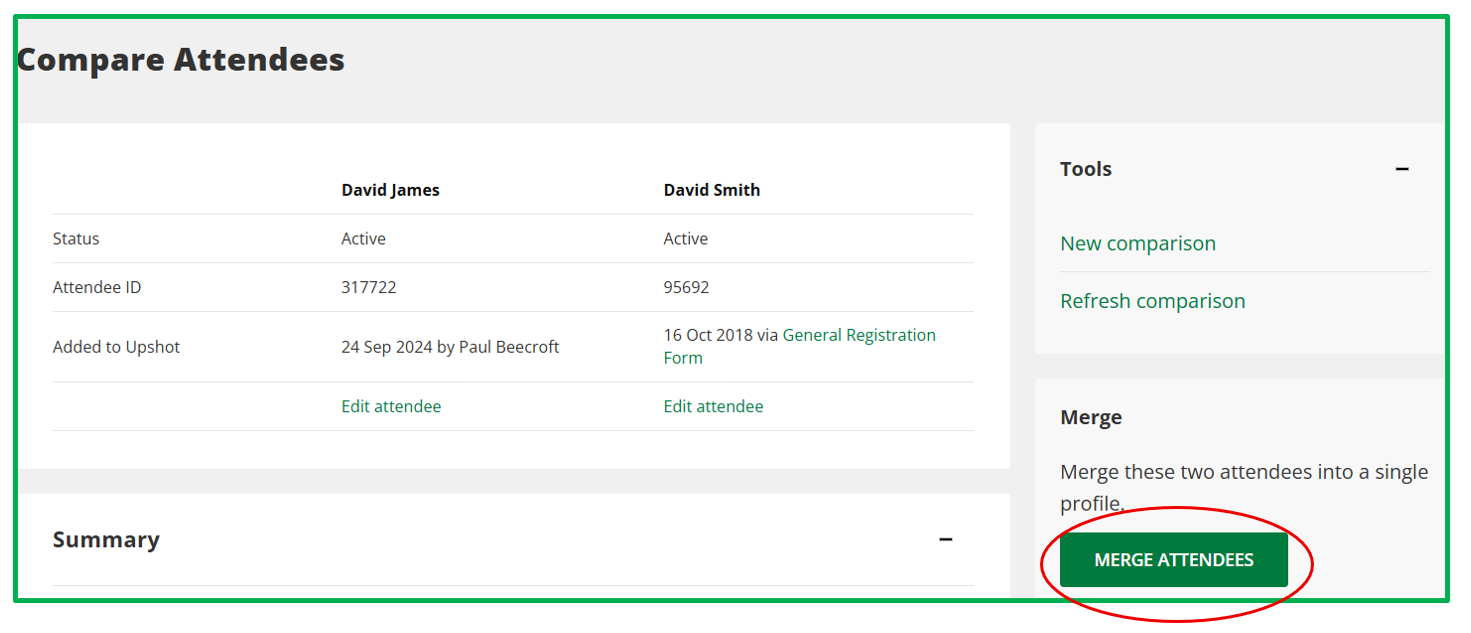
- After selecting the two attendees to compare, users will be presented with the Merge Attendees button on the right-hand side of the page.
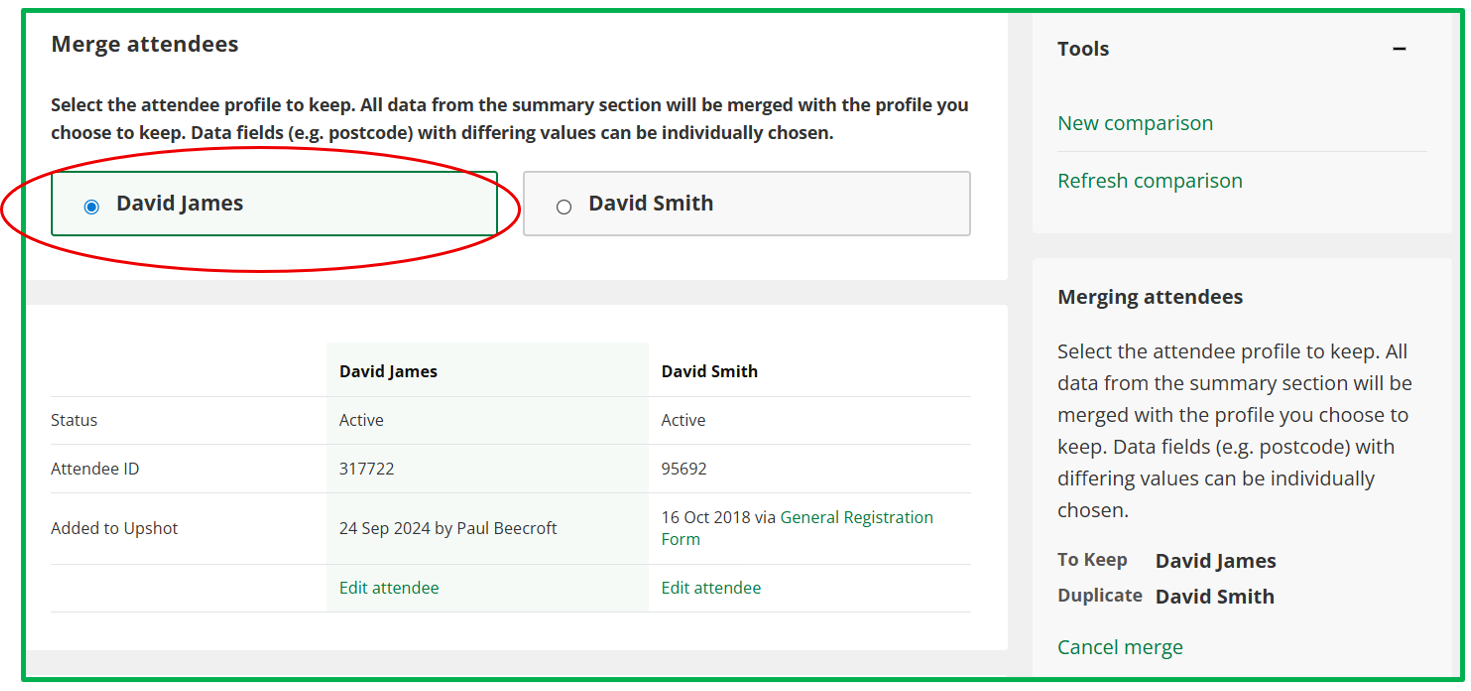
- Once selected the user can then click on the name of the attendee profile they wish to keep at the top of the screen. The column of data for the attendee profile they wish to keep will be highlighted in green.
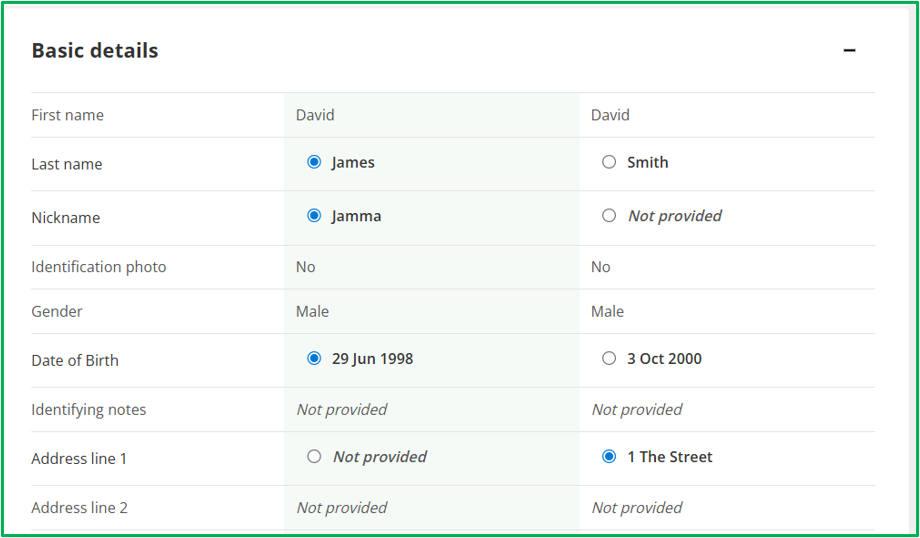
- Select the relevant entry to keep for any data fields with differing values as the user scrolls down the screen.
The logic will default to select an entry for any field whereby one profile has information and the other does not i.e. if David James has no Address Line 1 but David Smith does, the system will default to select David Smith’s Address Line 1 when the merging take place, but this can be amended.
In instances whereby both profiles have an entry into a data field, the system will default to select the data against the profile the user wishes to keep, but the user can amend which entry they wish to keep if desired. For example, the user could amend the Date of Birth below to select 3 Oct 2000.
Note: The merging process will also transfer over any data for Facilitating, or Delivery Organisation, custom attendee fields that are no longer displayed and thus not shown in the comparison page. This merging will follow the same logic as that for displayed fields.
- Once finalised, at the bottom of the page click Merge Attendees.

- A pop up will appear, reiterating the action that is about to be taken and that this is irreversible. Users should acknowledge the statement that ‘Data will be transferred to the profile you choose to keep. The other profile will be permanently deleted. This cannot be undone’ before clicking OK.

- After merging, the user will be taken to the profile of the attendee they have chosen to keep.
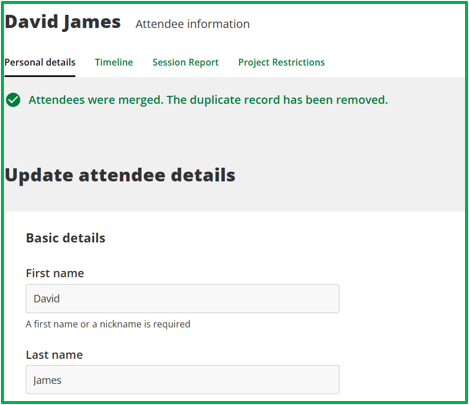
Key information regarding merging
General:
- Once merged, the profile that is not kept is deleted from the system.
- The merging process is irreversible.
- Only users who hold both the System Admin role and either the Project Manager, Session Registrar or Team Manager role, can complete the merging process.
- Users can only merge profiles they have full access to. If one or both profiles are restricted and the user does not have full access to the relevant profile(s), they cannot be merged.
- After merging, users should be aware that their reports will be impacted. For instance, if an organisation has worked with 10 attendees and there are two Joe Bloggs on the registers, after merging, and removing the duplicate, the reports will show that they have worked with 9 different attendees.
- It is not possible to use the compare attendees page to search for archived attendees.
- It is not possible to include attendees connected to a user profile within the merging process.
- Attendee Groups do not show within the compare attendees page. The merging process will treat aspect like multiple-choice data fields where the selections from both attendees will be added to the merged profile.
Summary section:
- All Sessions, Surveys (completed and outstanding), Timeline Events and Media will be merged onto the profile that is kept.
- The above does not necessarily mean the below scenario would equate to an addition of the numbers:
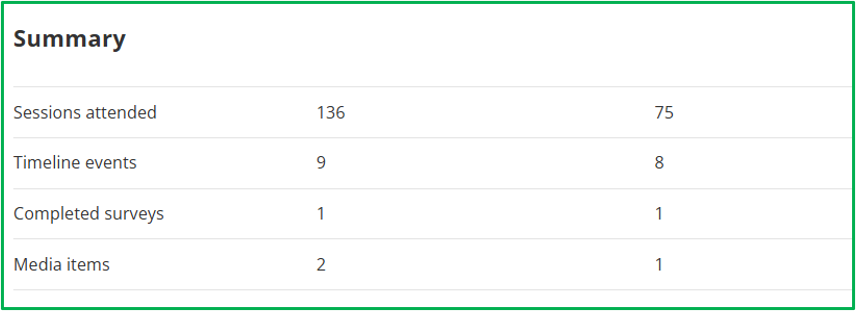
i.e. the merged profile will not necessarily have then attended 211 sessions, completed 2 surveys or be associated to 3 media items.
This is because both profiles may have been added to the register for the same sessions, completed the same survey deployment, or both been associated to the same piece of media.
In the case of Timeline Events, the merged profile will have both sets of events added to their profile.
- Sessions - all sessions where the individual is on a register including submitted, draft and abandoned sessions will be transferred to the profile that is kept.
- Timeline Events - all Timeline Events are added to the profile that has been kept after merging takes place. Any existing restrictions on these events stays in place.
- Surveys:
- In the case of both attendees having completed the same survey deployment, once merged the original response will be kept.
- For uncompleted surveys, if a deployment is set up to be emailable, a new email will not be sent out automatically to the merged profile within the deployment. The delivery status will show as unknown.
- Media - all Media items associated to the deleted profile are added to the profile that has been kept after merging takes place. Any existing restrictions on these events stays in place.
Data fields:
- For text box, single-choice, tickbox and date data fields users can choose which response to keep for the merged profile.
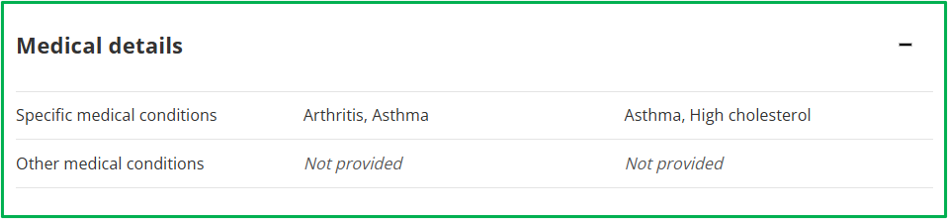
- For multiple-choice data fields the selections from both attendees will be added to the merged profile. For example, in the scenario below the merged profile will end up with Specific Medical Conditions of Arthritis, Asthma and High cholesterol.
Other use cases for merging
Whilst primarily users will engage with the functionality to merge existing duplicates on their account, the functionality does allow organisations to address different use cases such as those below:
Re-registering Attendees
Organisations may wish to ensure the details for their existing attendees on the system are up to date, such as address or contact details.
In this scenario organisations could ask existing attendees to 're-register' and complete the Attendee sign-up form again. Once on the Attendee sign-up waiting list they can then merge those profiles with those already on the system, allowing them to update these individual elements in the merging process.
We would advise choosing to keep the original profile and updating any data fields as needed when merging (i.e. choosing to keep the new phone number) to preserve accuracy in elements such as the 'Added to Upshot' date.
To aid this process, organisations may consider creating a specific Attendee sign-up form for this purpose. This can make it clearer when the sign-up is received that the attendee already exists on the account, but also allow the form to only contain relevant fields.
Additional detail for existing attendees
In some instances, organisations may have additional data fields they need to collect for a specific project/programme on attendees that are already registered on their account.
Similar to re-registering the organisation could use an existing, or create a new, Attendee sign-up form for this purpose and ask existing attendees to complete.
Once on the Attendee sign-up waiting list they can then merge those profiles with those already on the system, allowing them to update these individual elements in the merging process.
We would advise choosing to keep the original profile and updating any data fields as needed when merging (i.e. choosing to keep the new phone number) to preserve accuracy in elements such as the 'Added to Upshot' date.